
• Brand
  • Products
  • Store
  • Support

GR WORLD GR WORLD

Update the Camera Firmware

Image depicting the aforementioned content

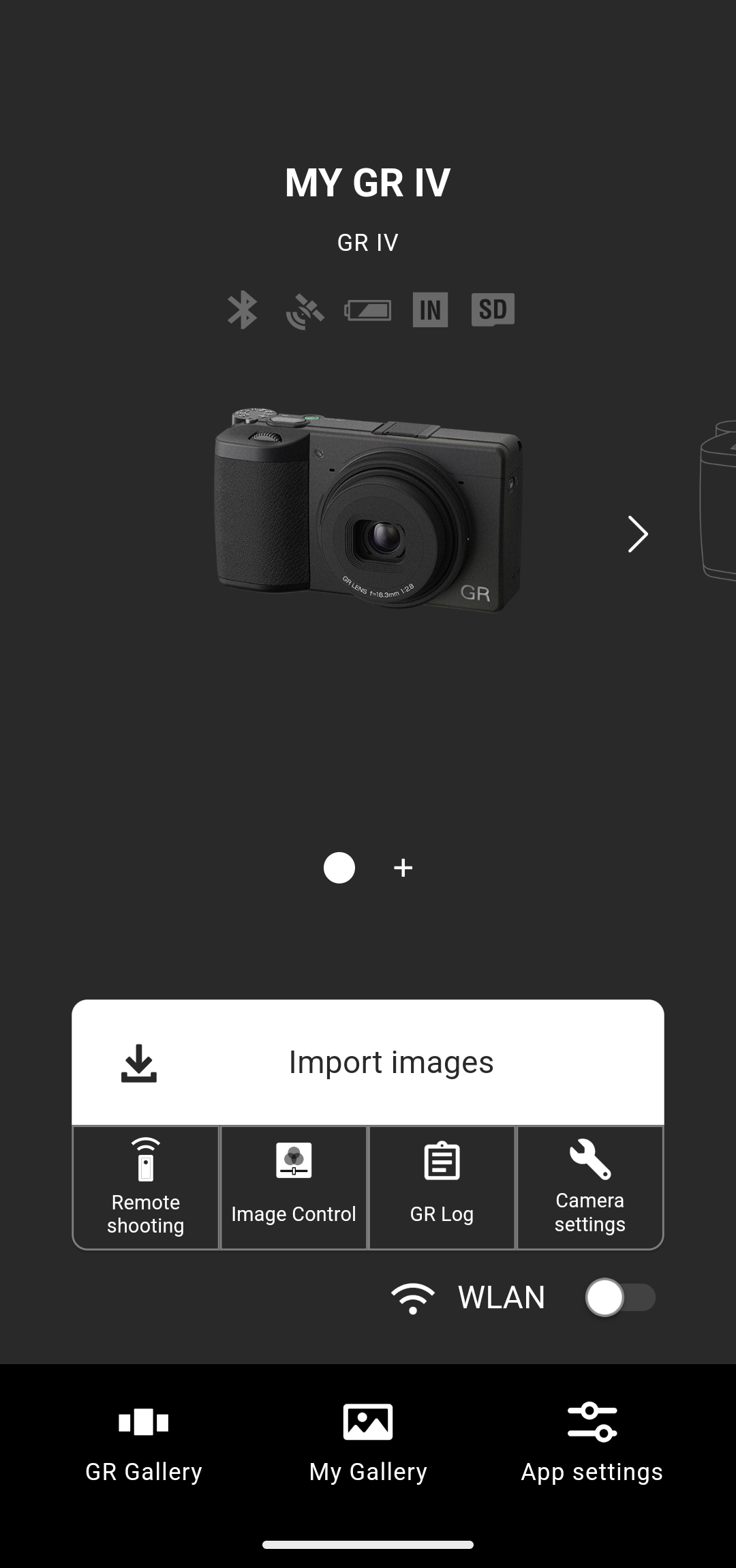
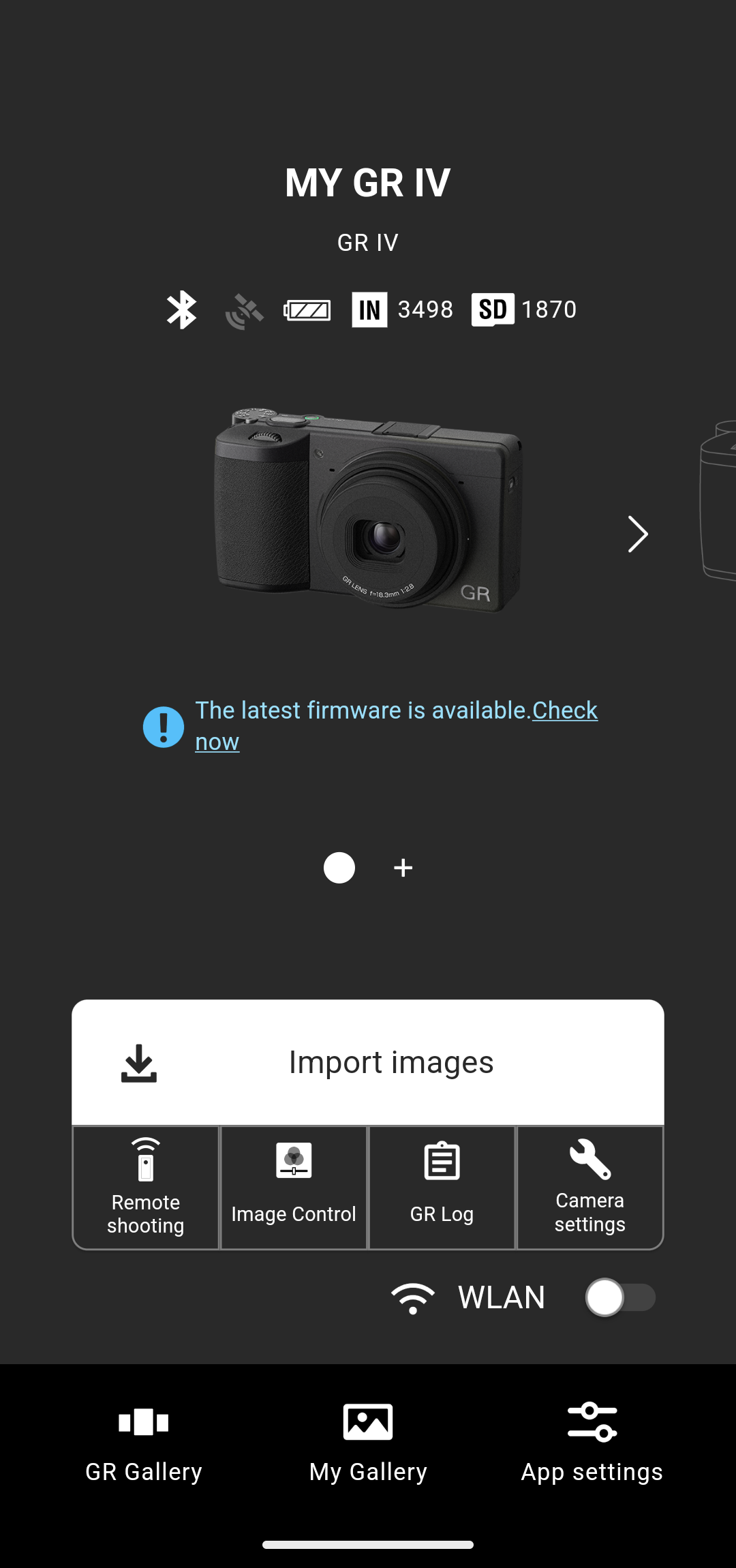
1. If the firmware of the camera registered in the app is not the latest, the message “The latest firmware is available.” appears on the home screen.
Tap [Check now].

The GR III, GR IIIx, and GR II do not support this function.
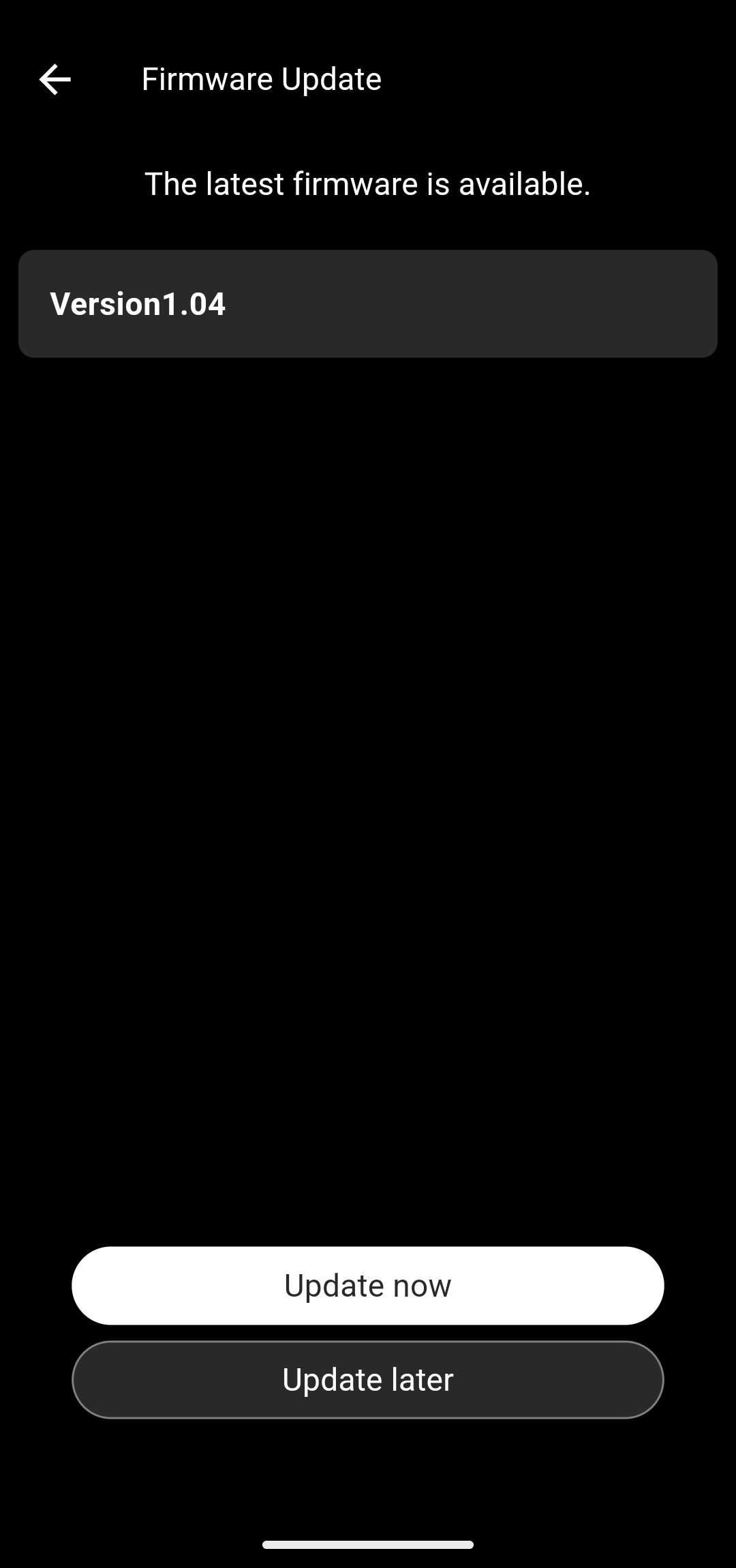
Image depicting the aforementioned content

2. Tap [Update now].

After tapping, the subsequent process will proceed automatically. Do not operate the app or camera until the camera firmware update is complete.

Check the following points before performing the update.

  • The camera battery level is sufficient.
  • The smartphone battery level is sufficient.
  • There is sufficient free storage space on the smartphone.
Image depicting the aforementioned content

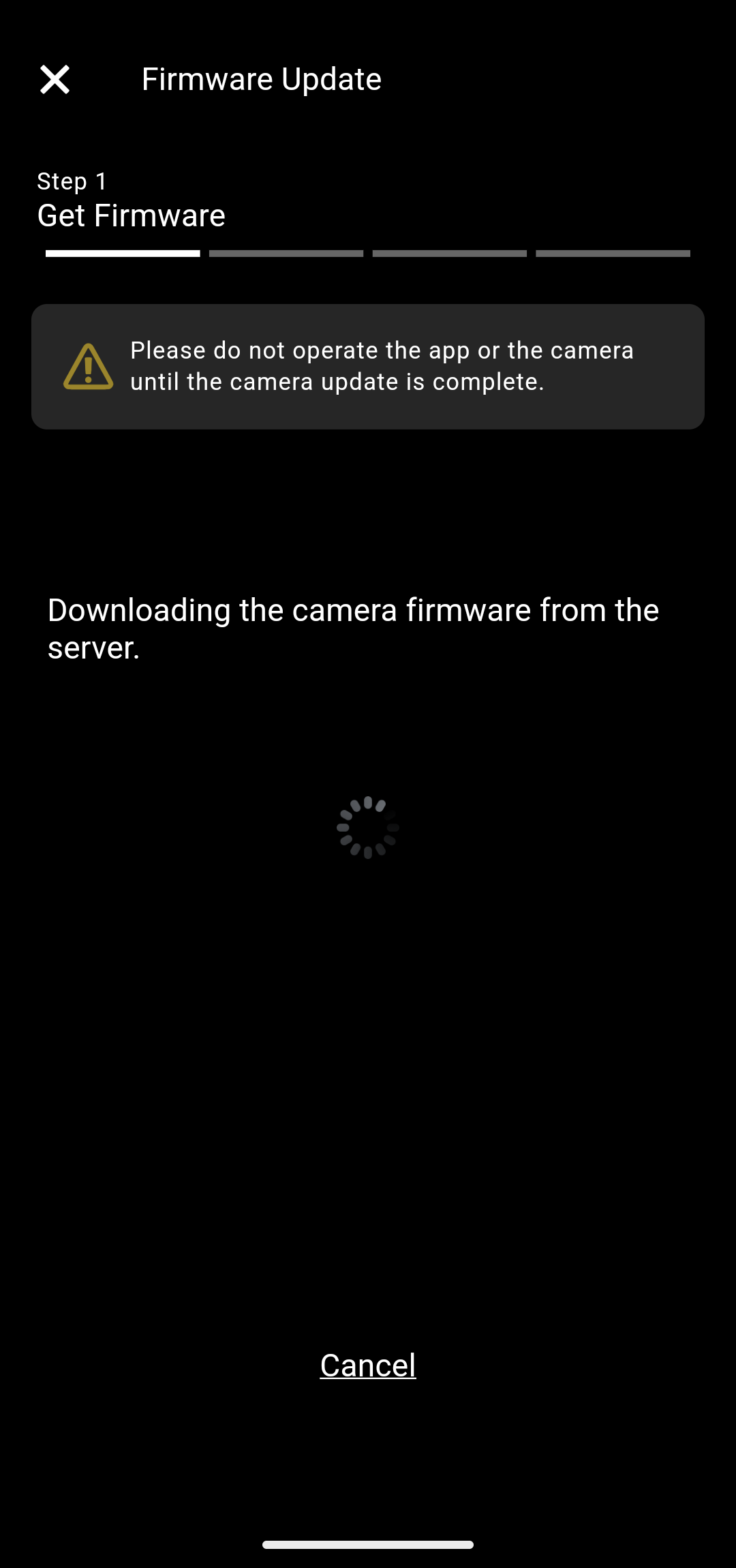
3. The camera firmware is downloaded from the server.

Image depicting the aforementioned content

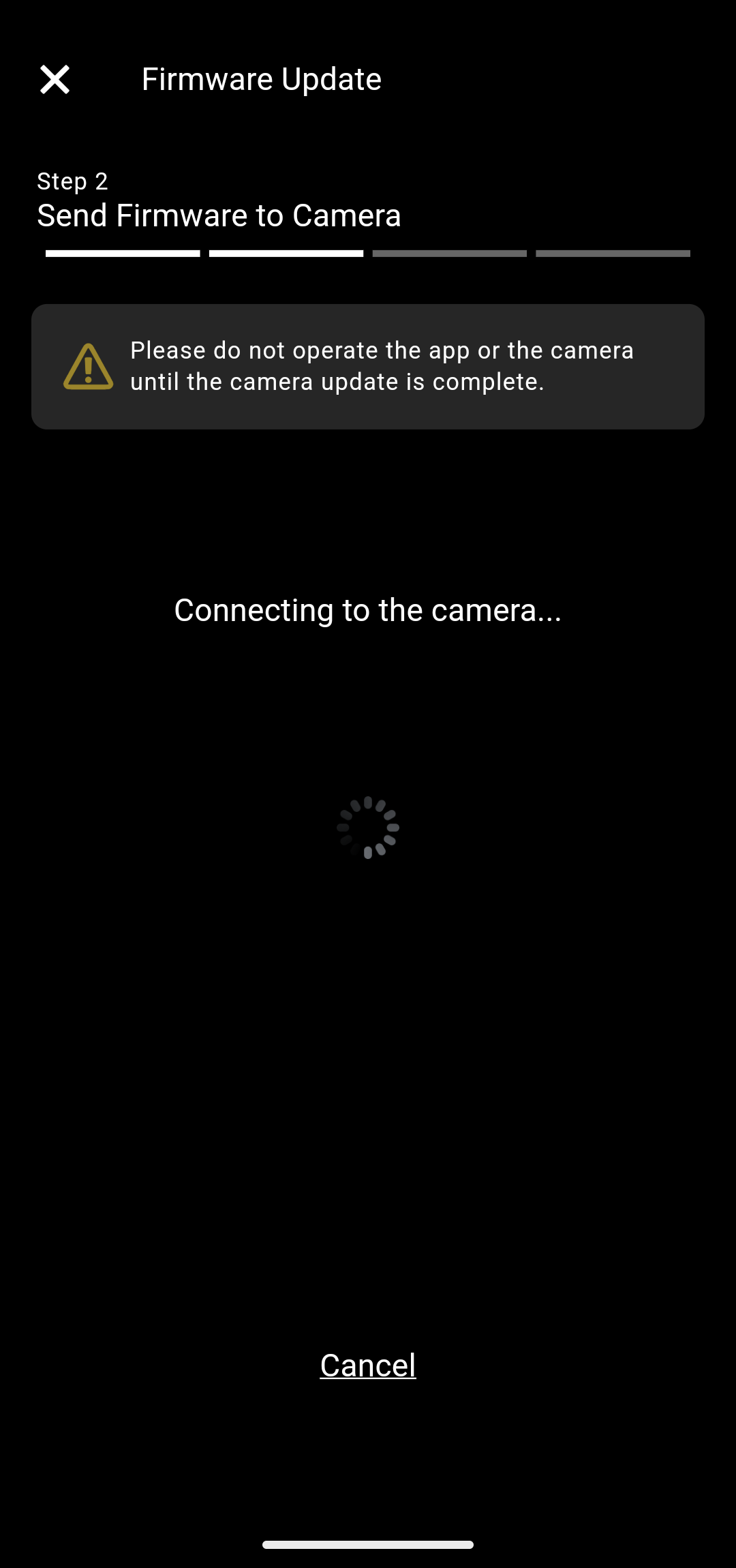
4. Once the firmware download is complete, the connection to the camera via Wi-Fi starts.

Image depicting the aforementioned content

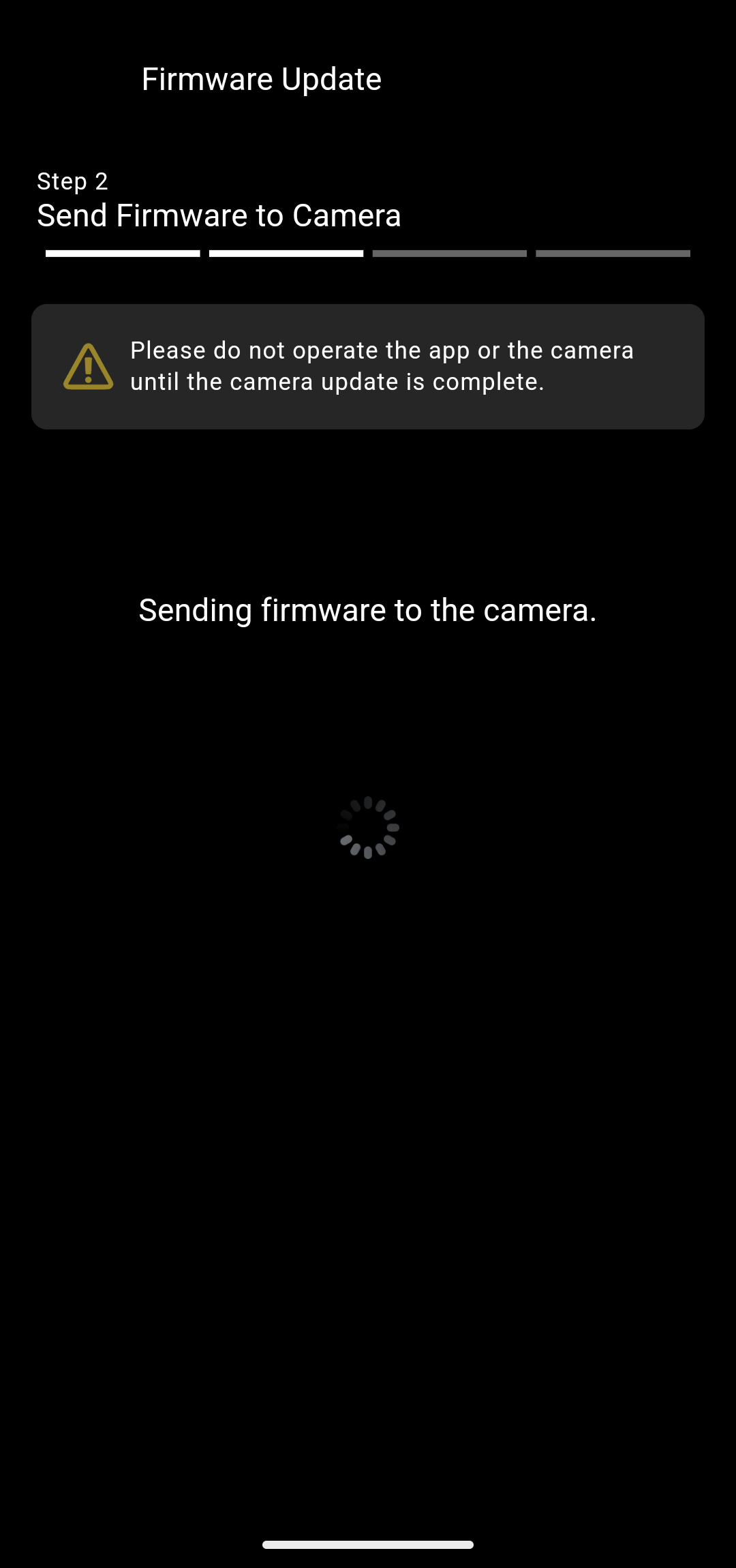
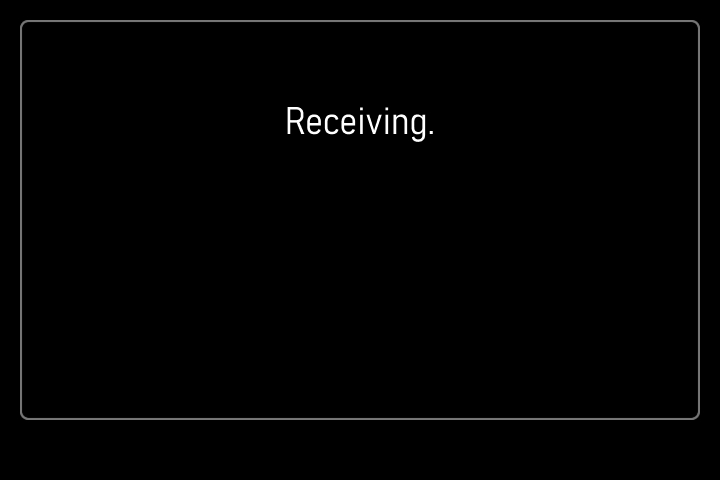
5. Once the connection to the camera via Wi-Fi is established, the firmware is transferred to the camera.

If an error message appears on the app screen after the message “Receiving.” appears on the camera monitor, wait until the error message also appears on the camera monitor, then try again from the beginning.

Image depicting the aforementioned content

Image depicting the aforementioned content

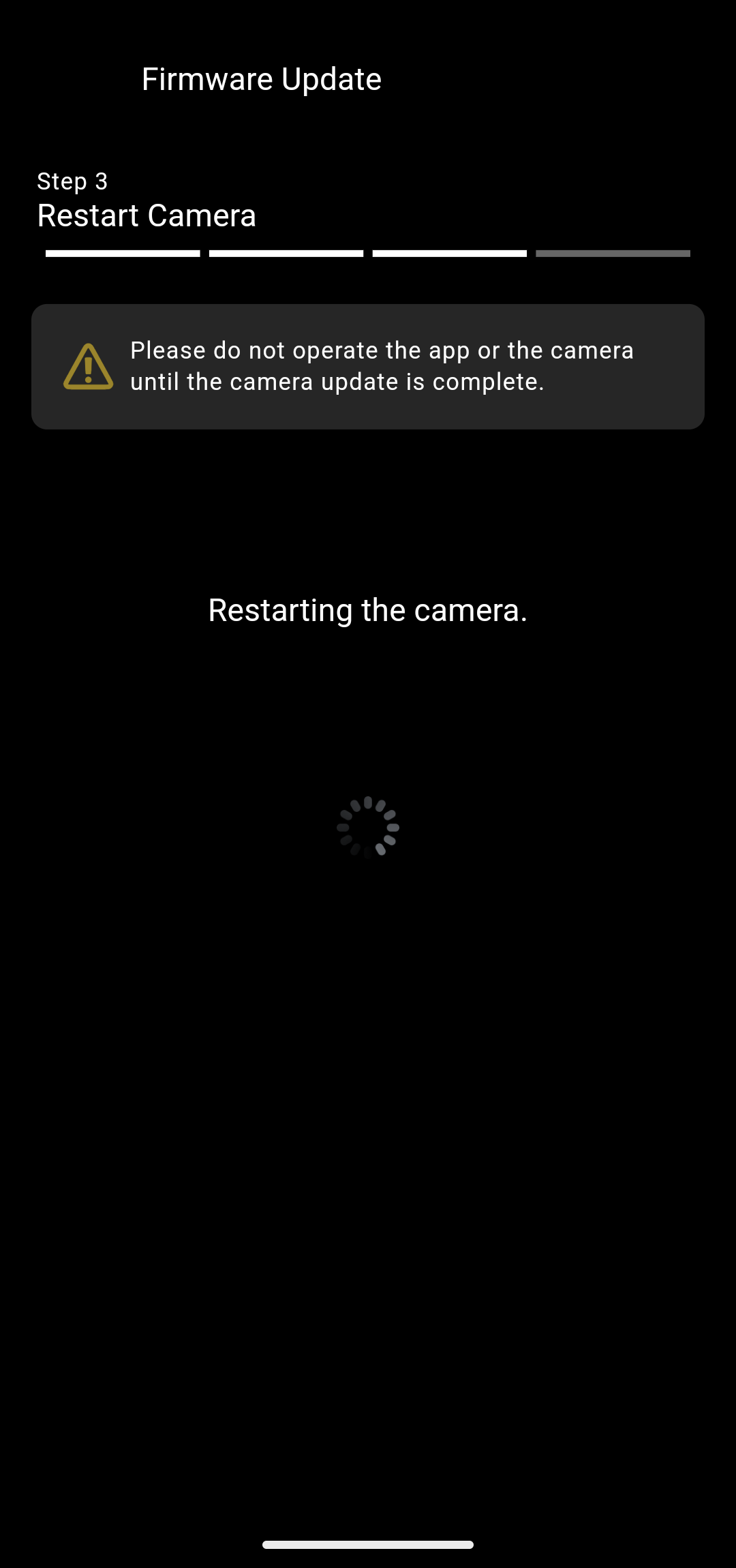
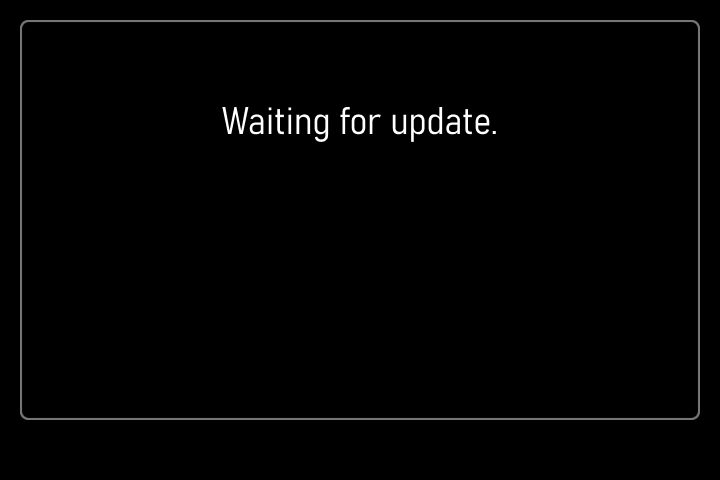
6. Once the firmware is successfully transferred to the camera, the camera restarts.

Image depicting the aforementioned content

Image depicting the aforementioned content

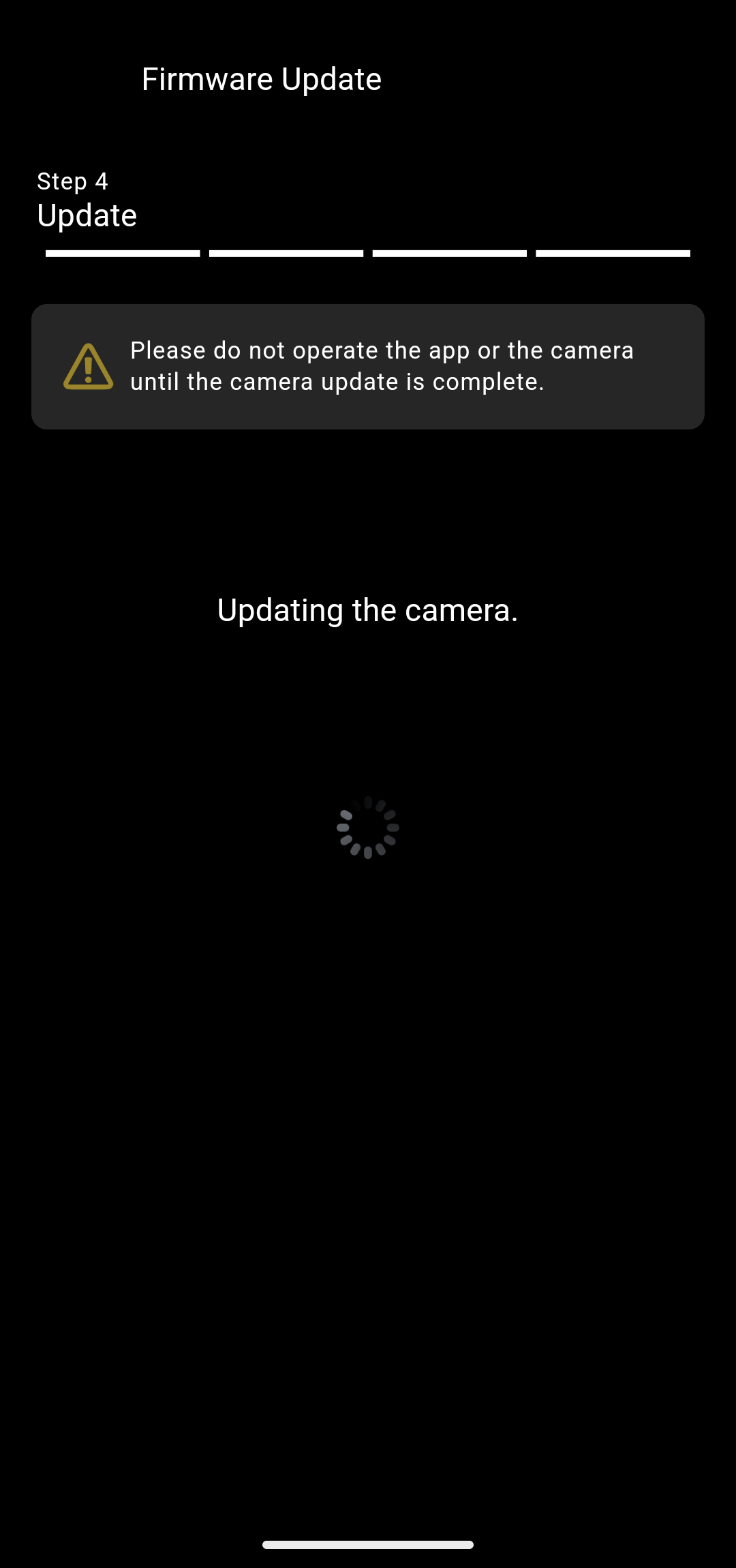
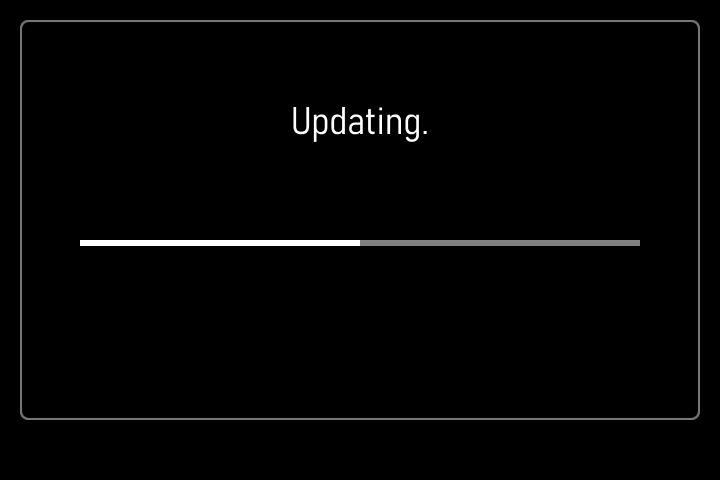
7. Once the camera restarts, the firmware update starts.

Image depicting the aforementioned content

Image depicting the aforementioned content

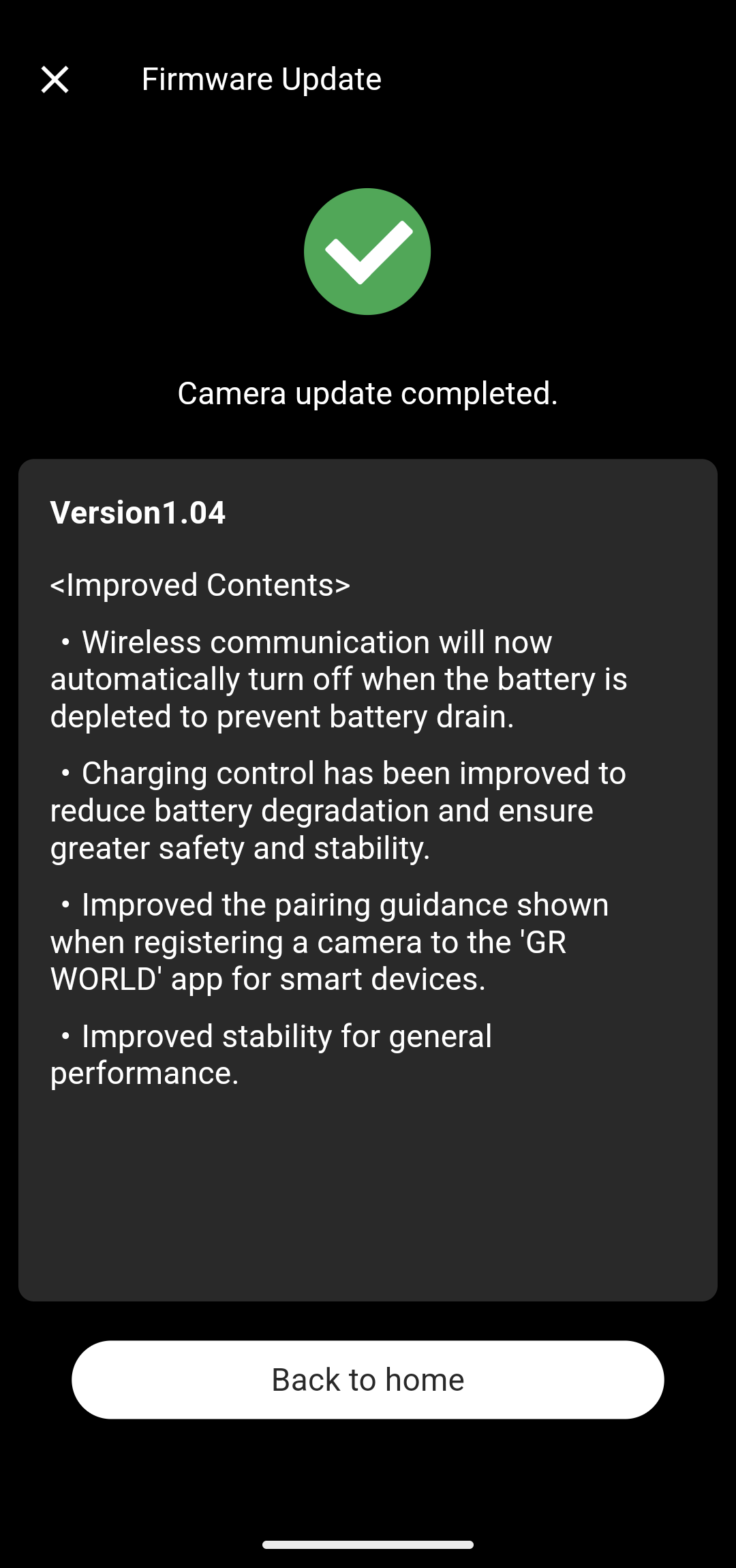
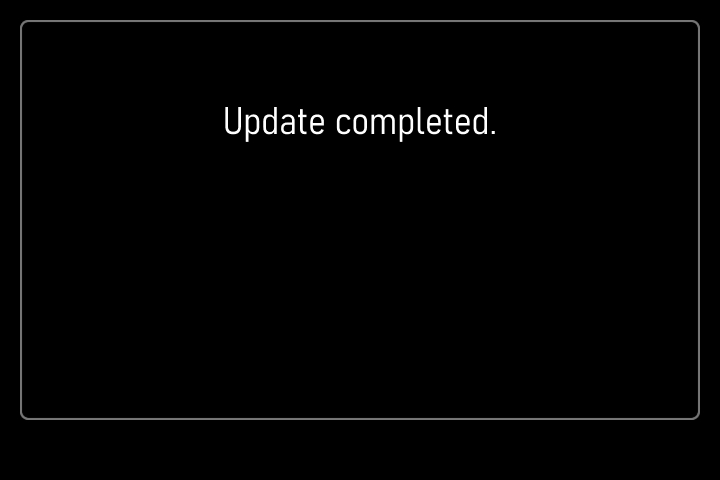
8. Once the camera firmware update is complete, the completion screen appears.
Then the camera turns off automatically. Turn the camera on to use it.

Image depicting the aforementioned content

Image depicting the aforementioned contentImage depicting the aforementioned content

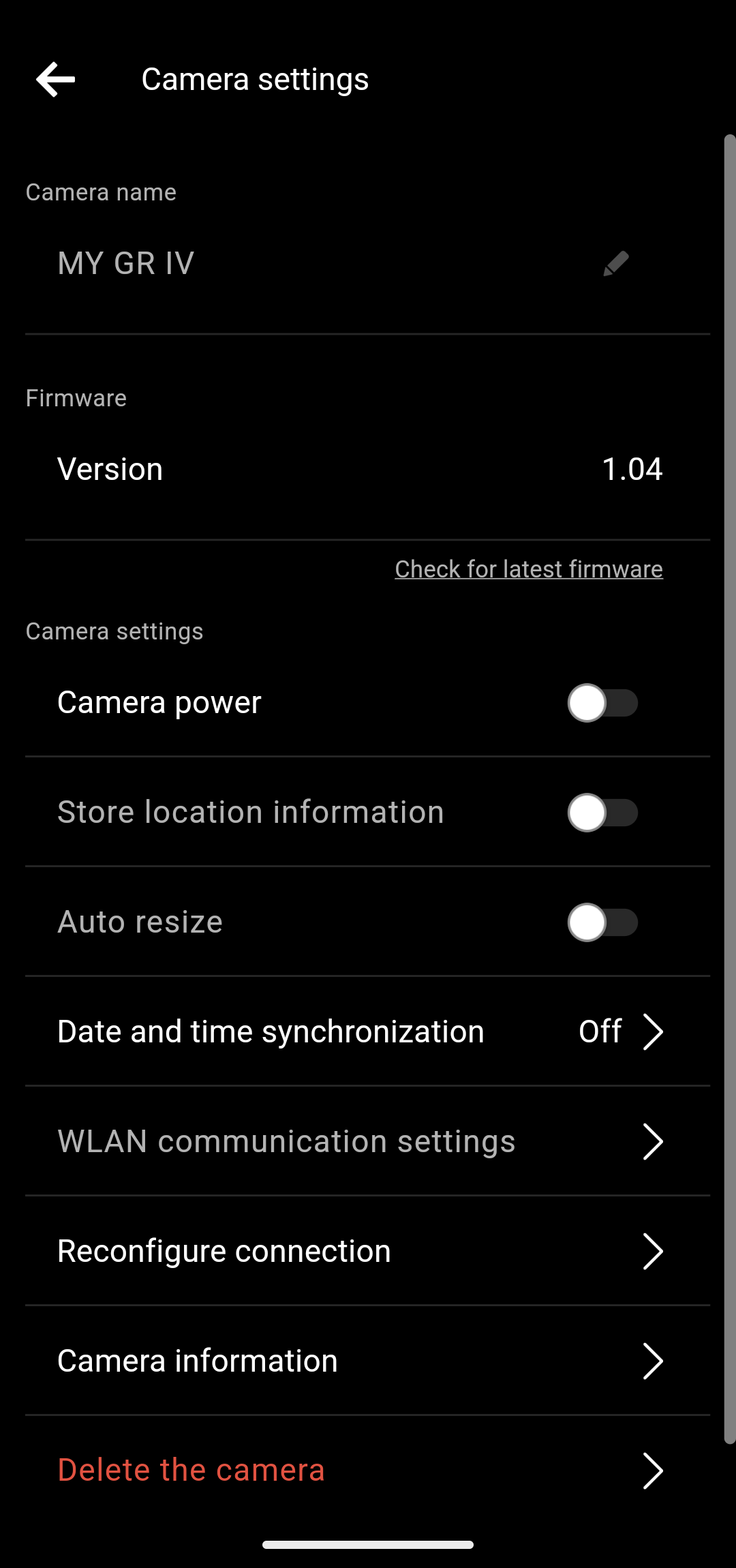
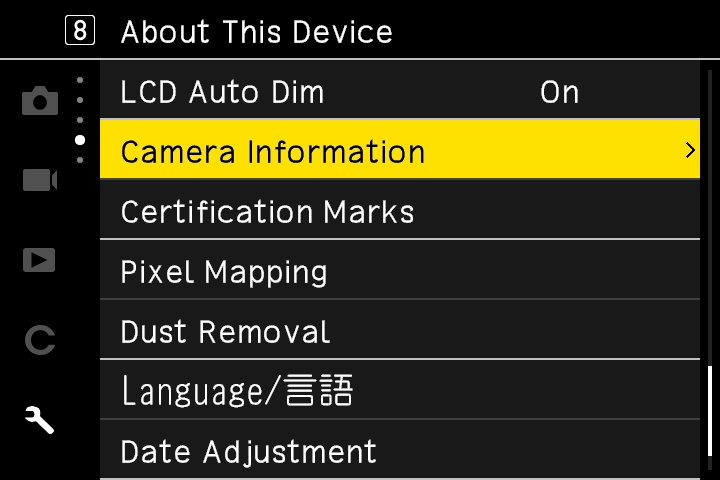
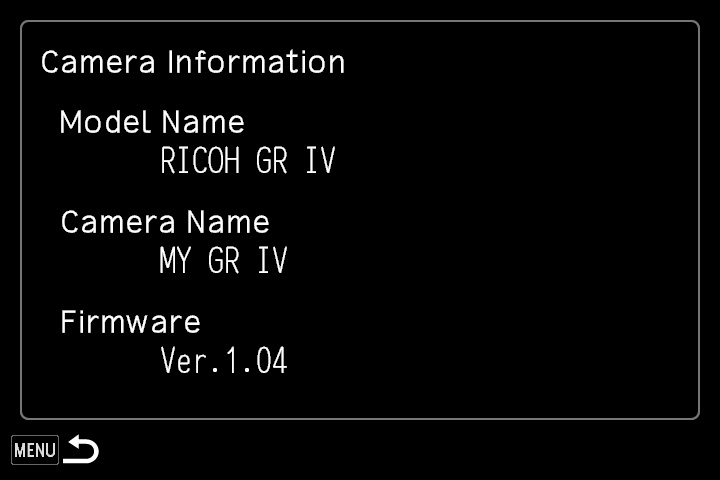
9. You can check the camera firmware version by selecting as follows.

Camera: [Setup Menus] → [Camera Information]
App: [Camera settings] → [Firmware]

Image depicting the aforementioned content

Image depicting the aforementioned content

Page Top