


Downloads : Firmware Update
Thank you for using RICOH G900 II digital camera.
RICOH IMAGING COMPANY, LTD. wishes to announce the release of Firmware Update. Software Version 1.01 for RICOH G900 II.
Firmware in this document is the software that runs inside digital cameras.
Changes to V1.01
[Improved Contents]
- Improved stability for general performance.
*When this update is done, you will not be able to restore back to version 1.00.
Caution
- Only G900 II users can download the firmware update.
Firmware Update Software for RICOH G900 II
| Name | Firmware Update Software for RICOH G900 II |
|---|---|
| Registered name | g900-2_v101.zip (zip type file 18,368KB) |
| Applied product | RICOH G900 II |
| Updated firmware file | Zip type (For Windows/Mac) |
| Release date | 2025/12/25 |
| Copy right | RICOH IMAGING COMPANY, LTD. |
How to check the firmware version
[1] Turn ON the camera.
[2] Press MENU button.
[3] Operate 4-way button and display 4/5 page of the [Setup menus]
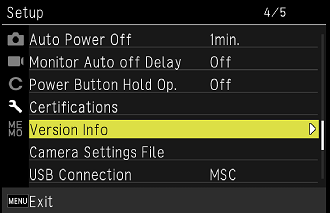
[4] Operate 4-way button and select [Version Info] then press 4-way button right.
[5] The firmware version is displayed on the image monitor.
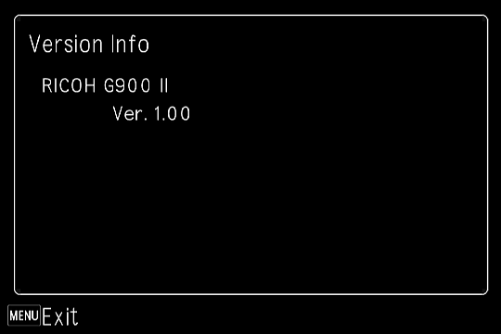
[6] The firmware version for camera is displayed on the [Version Info] screen.
Preparation of update
- RICOH G900 II camera body.
- A blank SD card which is formatted by RICOH G900 II (32MB or more)
- A fully charged DB-110 battery or the AC adapter kit K-AC166J.
*Be sure to use fully charged battery. If the camera turns off during updating due to lack of battery power, the camera will become inoperable. If this happens, a charge will be made for repairs even if within the warranty period.
- A computer and an environment that allows data to be written to an SD card.
If your computer does not have an SD card slot, please prepare a commercially available SD memory card reader/writer.
* By selecting “MSC” under “USB Connection” in the G900 II menu (Setup 4/5), the camera can be used as a card reader/writer when connected to a computer via USB.
Download the updated firmware file
- For Windows/Mac: G900 II _v101.zip 18,368KB, zip type
Updating Procedure
Provide a formatted SD memory card for the update software. The download file is compressed file, so that it needs to be extracted. The following file is extracted file.
- FWDC363P.BIN: This is the updated firmware
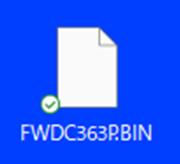
1.Copy the above Firmware file [FWDC363P.BIN] to the root directory of the SD card.
2.Insert the battery into the camera and confirm the battery is full by battery level indicator then turn the camera off.
3.Insert the update SD card (prepared in step 1) into the camera and close card cover.
4.Press  +
+  buttons at same time.
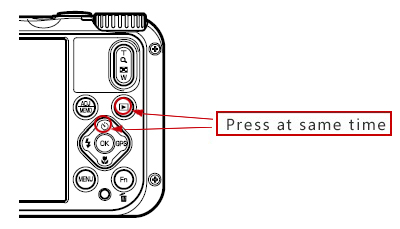
5.[Update the camera firmware] is displayed
Select [Execute] by 4-way button and press [OK] button.
6.The firmware update will start and [Updating] is displayed.
*Do not turn OFF the camera while updating.
7.When update is completed, [Update completed] will be displayed
8.Turn OFF the camera and remove the SD card from camera.
*Confirm the version of firmware with above [How to check version].
[Caution]
When updating is completed, the update SD card still contains the Firmware file.
If you want to use this card to take pictures, format the card by the camera to delete firmware file first.
Firmware Update Software for RICOH G900 II Software License Agreement
The customer (hereinafter "the user") shall verify the following items below related to the use of the licensed software supplied to the user by RICOH IMAGING COMPANY, LTD. The download starts when you press "I agree. Start download." on this software license agreement.
- Definition of terms
- Licensed software: "Licensed software" means the captioned program in a format that the user can download from the RICOH IMAGING COMPANY, LTD website or from a site empowered by RICOH IMAGING COMPANY, LTD.
- Use : "Use" means the user downloading and retrieving the licensed software from the RICOH IMAGING COMPANY, LTD website or from a site empowered by RICOH IMAGING COMPANY, LTD.
- Designated machine: "Designated machine" means the single computer system set up for the user to use the licensed software.
- Reproduction: "Reproduction" means reproducing the licensed software on a storage device in the same format as the user downloaded or a different format.
- Modification: "Modification" means performing alternations or making additions to the licensed software or creating separate software that makes use of all or a portion of the licensed software.
- Grant of license
RICOH IMAGING COMPANY, LTD grants a non-exclusive license to the user on the condition that the user uses the licensed software in accordance with the terms and conditions of this software license agreement. The user may only use the licensed software on the designated machine. -
Reproduction of the licensed software
The user shall not reproduce the licensed software for purposes other than to save and backup the licensed software intended for use on the designated machine. - Modifying the licensed software
The user shall not modify or reverse engineer the licensed software for any reason. - Property rights and copyright
The copyright and other property rights for the licensed software and for reproductions of the licensed software belong to RICOH IMAGING COMPANY, LTD regardless of any reason. The user shall not remove the copyright notations from the licensed software or from reproductions of the licensed software. - Grant of sublicense
The user shall not transfer possession of the licensed software or reproductions of the licensed software to third parties, and the user shall not transfer the license nor grant a sublicense of the licensed software to third parties. - Agreement period
This software license agreement is effective on the day the user starts using the licensed software and is valid until the time the user stops use. Provided that, when the user has violated any portion of this software license agreement, RICOH IMAGING COMPANY, LTD may revoke the license granted to the user for the licensed software and terminate the software license agreement. - Obligations after termination
After the software license agreement is terminated, the user, at the user's own responsibility, shall dispose of the licensed software after rendering it into a state where it cannot be used by third parties, and dispose of reproductions and modifications of the licensed software, and all materials related to the licensed software. - Guarantee of the licensed software
RICOH IMAGING COMPANY, LTD shall not guarantee that the licensed software is suitable for the user's designated purposes, or that the licensed software is useful, or that this licensed software is free from defects, nor shall RICOH IMAGING COMPANY, LTD make any other guarantees related to the licensed software. - Exporting the licensed software
The user shall not directly or indirectly export all or a portion of the licensed software without obtaining the necessary permission from the Government of Japan or the governments of the relevant countries. - RICOH IMAGING COMPANY, LTD 's responsibilities
RICOH IMAGING COMPANY, LTD A assumes no responsibility under any circumstance for direct or indirect damage or damage from ripple effects that occurs from using the licensed software, for damage to data, programs, or other intangible properties, or for loss of usage benefits and lost profits. - Responsibility for employees
The user assumes all responsibility that the user's employees (those employees that the user has a responsibility to manage or monitor based on an employment relationship) fully comprehend the obligations set forth in this software license agreement and faithfully fulfill those obligations.
For Windows/Macintosh
